
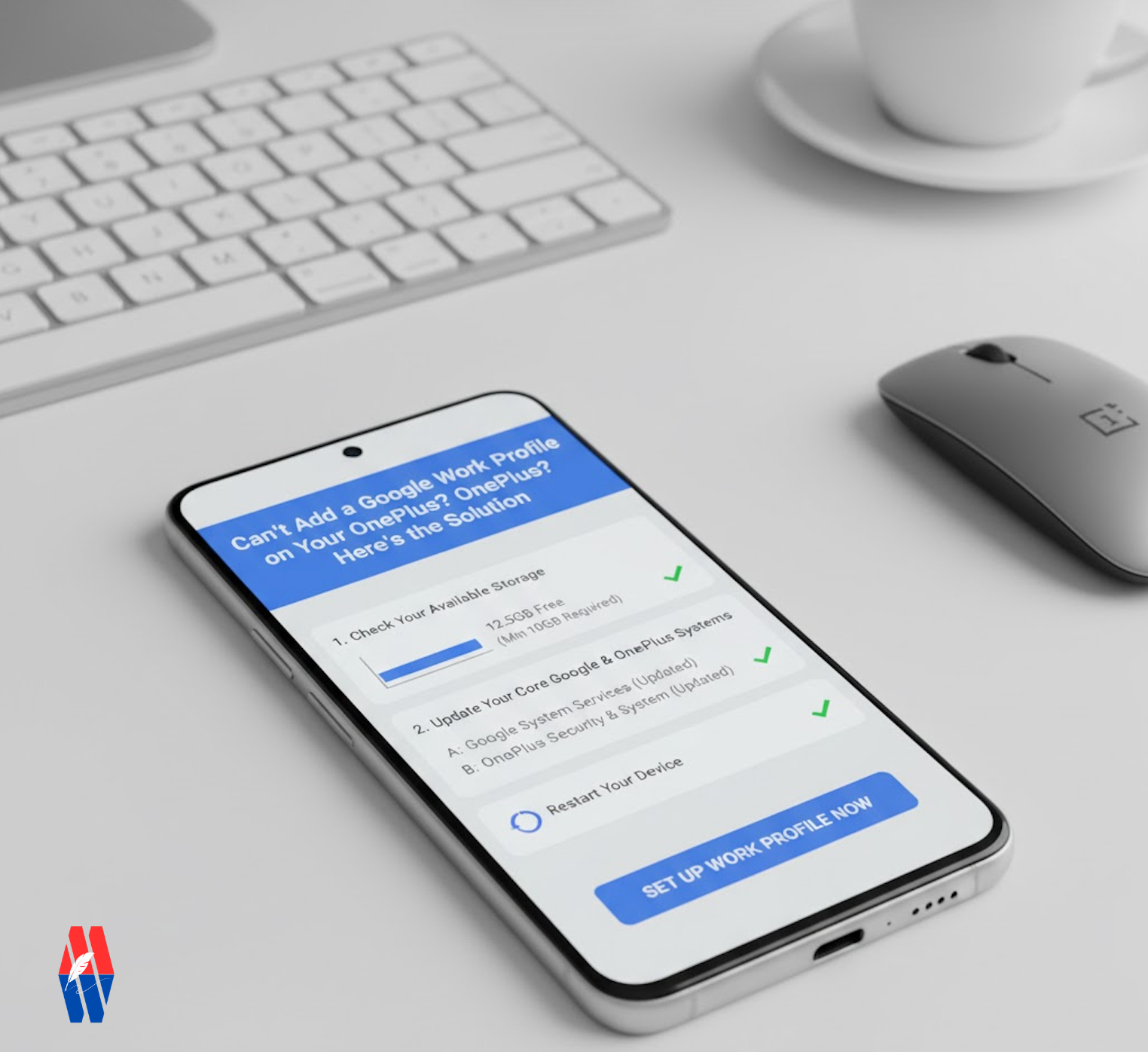
Setting up a Google Work Profile is a fantastic way to separate your professional and personal lives on a single device. However, many OnePlus users encounter a frustrating roadblock where the setup process fails without a clear explanation. You might see it get stuck, time out, or simply refuse to complete.
The good news is that this issue is rarely a fault of your device. More often than not, it’s caused by a few simple, overlooked prerequisites related to storage and system updates. This guide will walk you through the essential steps to resolve the problem and get your Work Profile running smoothly.
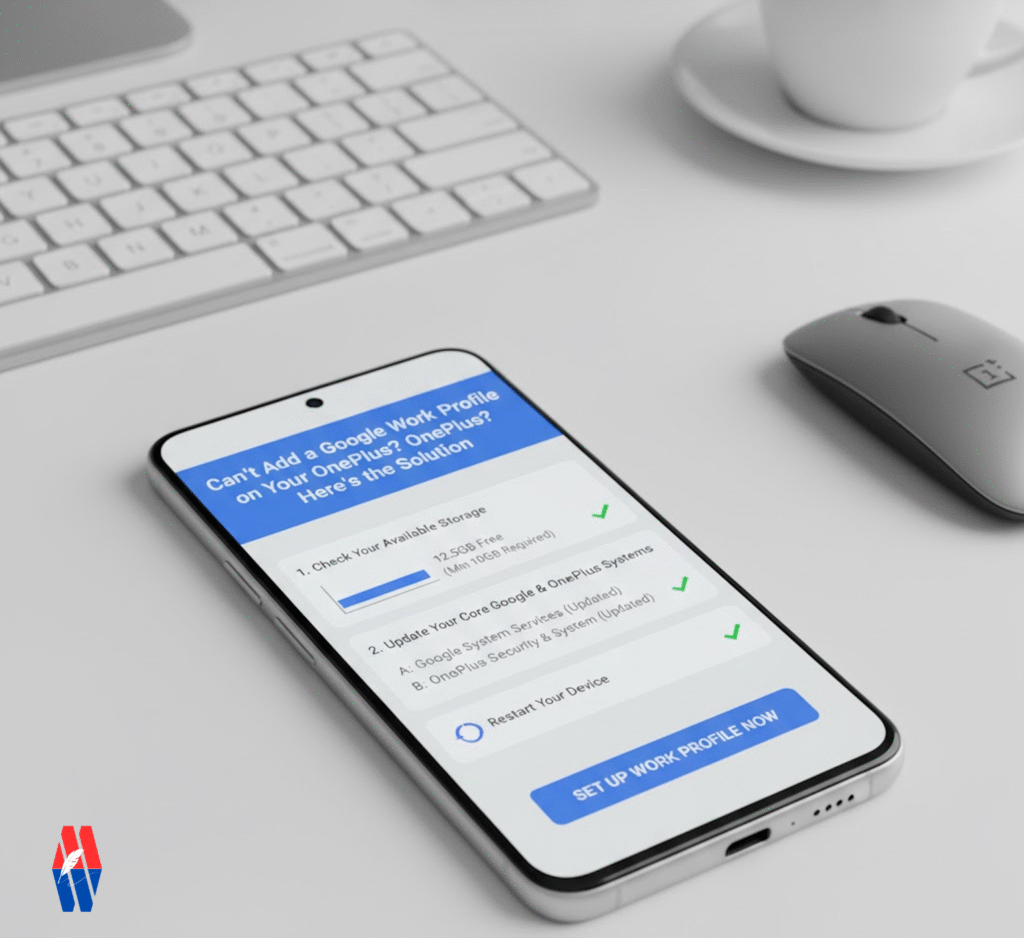
Part 1: The Essential Prerequisites Checklist
Before you attempt to add the Work Profile again, you must ensure your device is fully prepared. Follow these steps carefully.
1. Check Your Available Storage
A Google Work Profile creates a separate, containerized space on your phone to securely store work apps and data. This process requires a significant amount of free space to function correctly.
- Requirement: You need a minimum of 10GB of free internal storage.
- How to Check:
- Go to
Settings. - Tap on
Storage. - Verify that the “Available” space is well over 10GB. If it’s not, take a moment to clean up old files, photos, or unused apps.
- Go to
2. Update Your Core Google & OnePlus Systems
This is the most critical step and the one that solves the problem for most users. Your phone’s security and core services must be completely up-to-date to meet the compliance requirements of a Work Profile. This is a two-part process.
Step A: Update Google System Services
These are the background services that power Google’s features on your phone.
- Navigate to
Settings>Google. - Tap on
All servicesto expand the list. - Scroll down and select
System services. - The phone will automatically check for updates. If any updates are pending for services like Google Play system update, please download and install them.
- You may be required to restart your device after the update.
Step B: Update OnePlus Security & System
Next, ensure your phone’s operating system and security patches are current.
- Navigate to
Settings>Security & Privacy. - Tap on
System & updates. - Click on
Check for updates. - Your phone will search for the latest OxygenOS updates and security patches. If an update is available, download and install it.
3. Restart Your Device
After ensuring you have enough storage and all system updates are installed, perform a simple restart. This allows all the recent updates to be properly initialized and can clear any temporary glitches in the system.
Part 2: Adding the Google Work Profile (The Right Way)
With the groundwork laid, you are now ready to add your Work Profile.
- Navigate to
Settings>Passwords & accounts. - Tap on
Add account. - Select
Google. - Instead of signing in with your personal account, look for an option that says “Set up a work profile” or follow the specific instructions provided by your company’s IT department (you may need to use an app like Microsoft Intune or Google Device Policy).
- Follow the on-screen prompts. The setup process should now complete without any issues.
Jollbee777’s worth a look, especially if you’re on the hunt for something new and maybe a bit different. Give Jollbee777 a try: jollbee777
Yeah I agree with this, been using them for a couple weeks and its pretty solid so far. No major issues and the payout speeds are way faster than what I expected. [url=https://22fun-onlinecasino.com/]22fun ph[/url]